
Install on Your Phone
Install PowBot On Your Phone
A step-by-step walkthrough for installing PowBot on an Android phone. No computer required — everything happens on your phone.
If you've never side-loaded an APK before, this guide is for you.
What you'll need
- An Android phone running Android 8.0 (Oreo) or newer.
- A few hundred MB of free space.
- An internet connection.
- Old School RuneScape — you can already have it installed, or let PowBot download it for you.
Step 1 — Download the installer
Open this link in your phone's browser:
Your browser will download a file called mobile-installer.apk. When it
finishes, tap the notification or open the file from your Downloads.
Some browsers ask whether to keep the file. Tap Keep or Allow — it's a normal app installer.
Step 2 — Install the app
Tap the downloaded APK. Android will ask whether to install it from your browser; tap Settings and toggle Allow from this source if prompted, then tap Install.
When the install finishes, tap Open.
Step 3 — Welcome screen
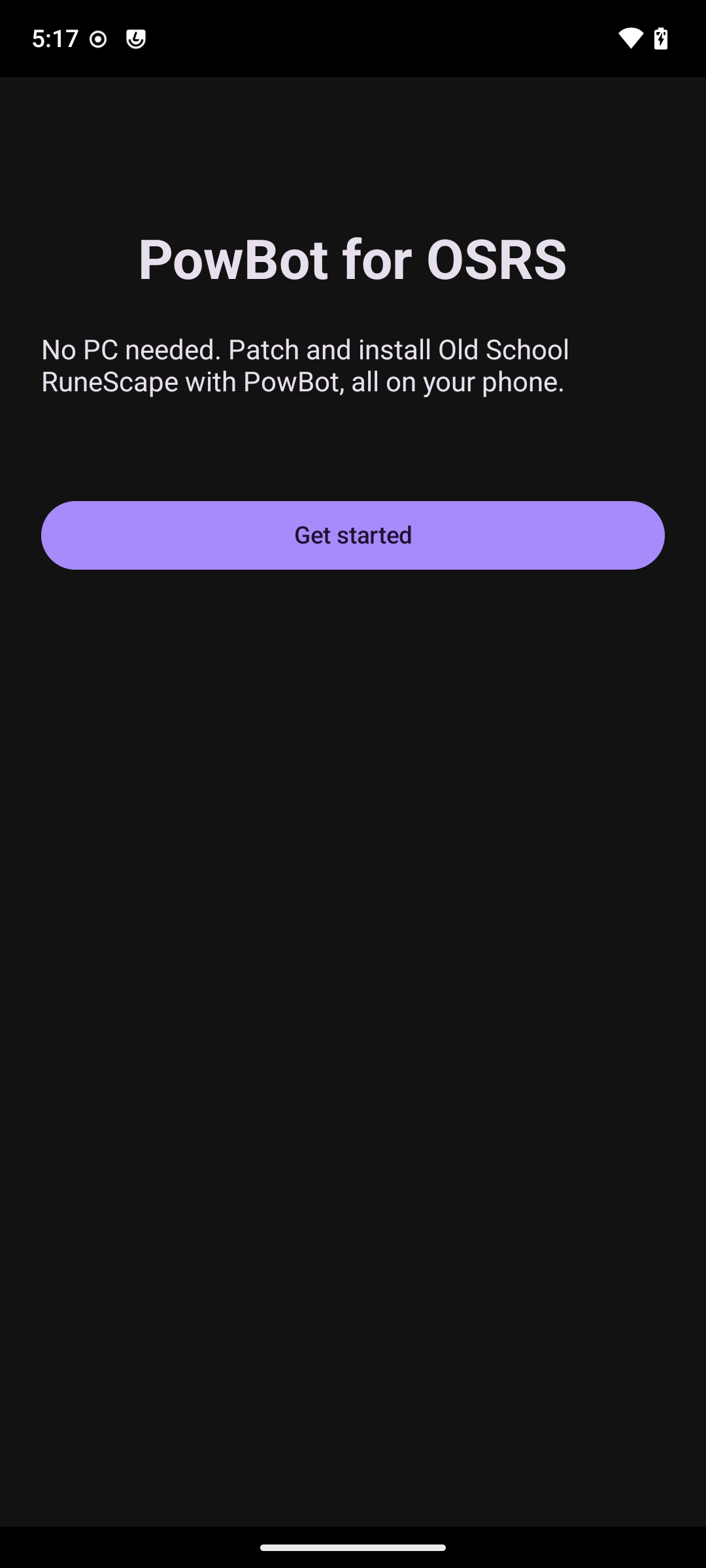
The first time you open PowBot you'll see a welcome screen. Tap Get started to begin.
Step 4 — Grant two permissions
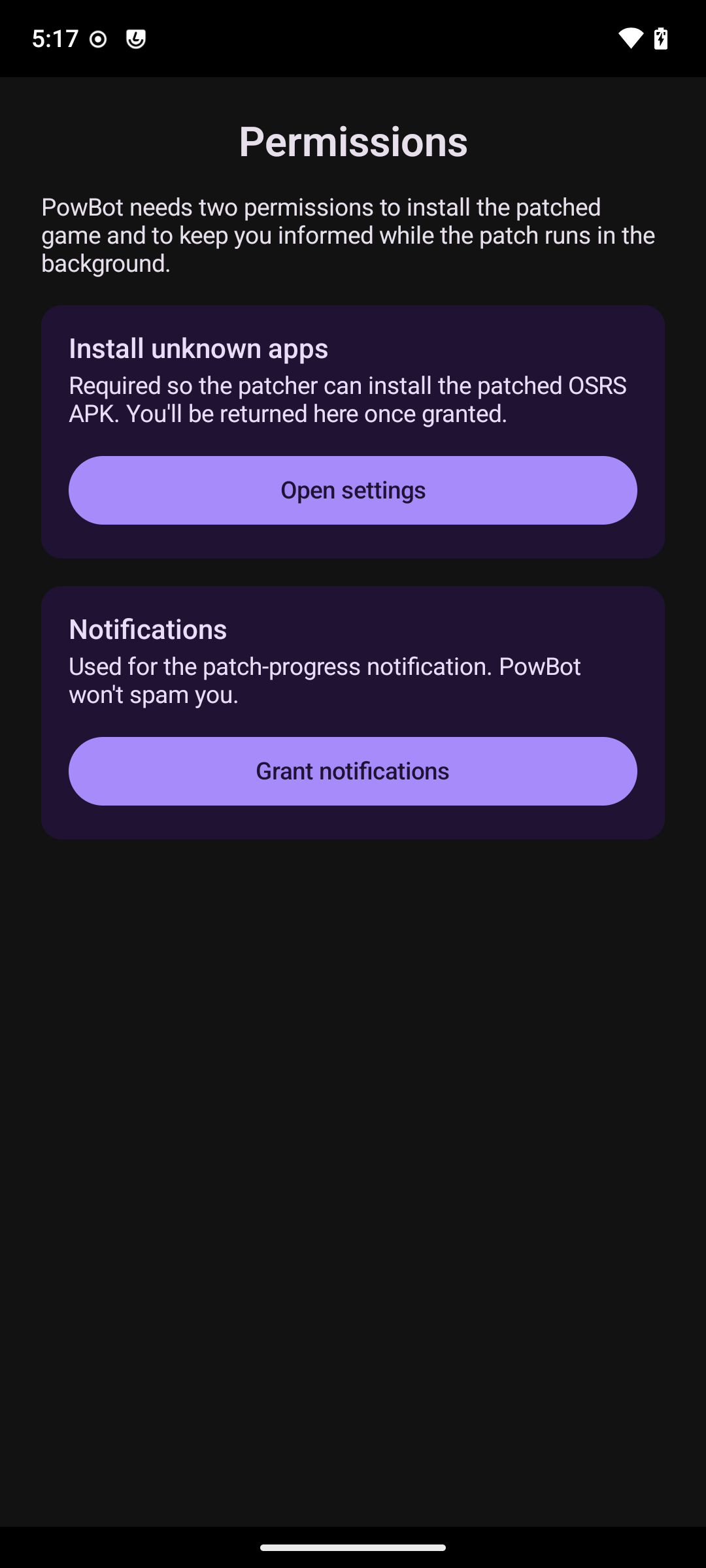
PowBot needs two permissions to do its job:
- Install unknown apps — so it can install OSRS on your phone.
- Notifications — so it can show progress while it's working in the background.
Tap each button and follow the system prompts. You'll be returned to PowBot once both are granted.
Step 5 — Set up OSRS
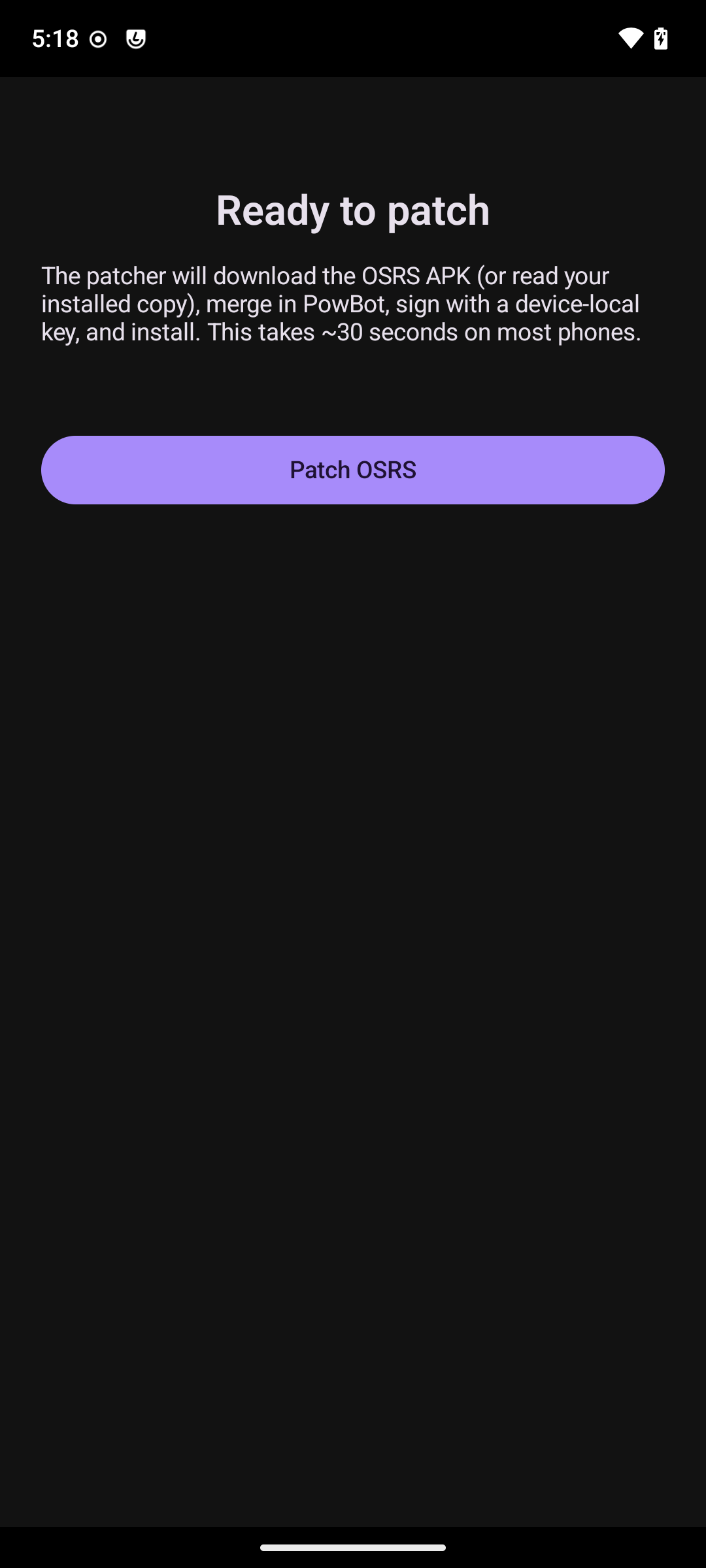
You'll land on the Ready to patch screen. This explains what's about to happen: PowBot will prepare everything it needs and install OSRS with PowBot built in. The whole thing takes about a minute or two.
Tap Patch OSRS to start.
Step 6 — Wait for it to finish
You'll see a friendly progress screen showing what's happening at each step:
| Downloading game files… | Building PowBot… |
|---|---|
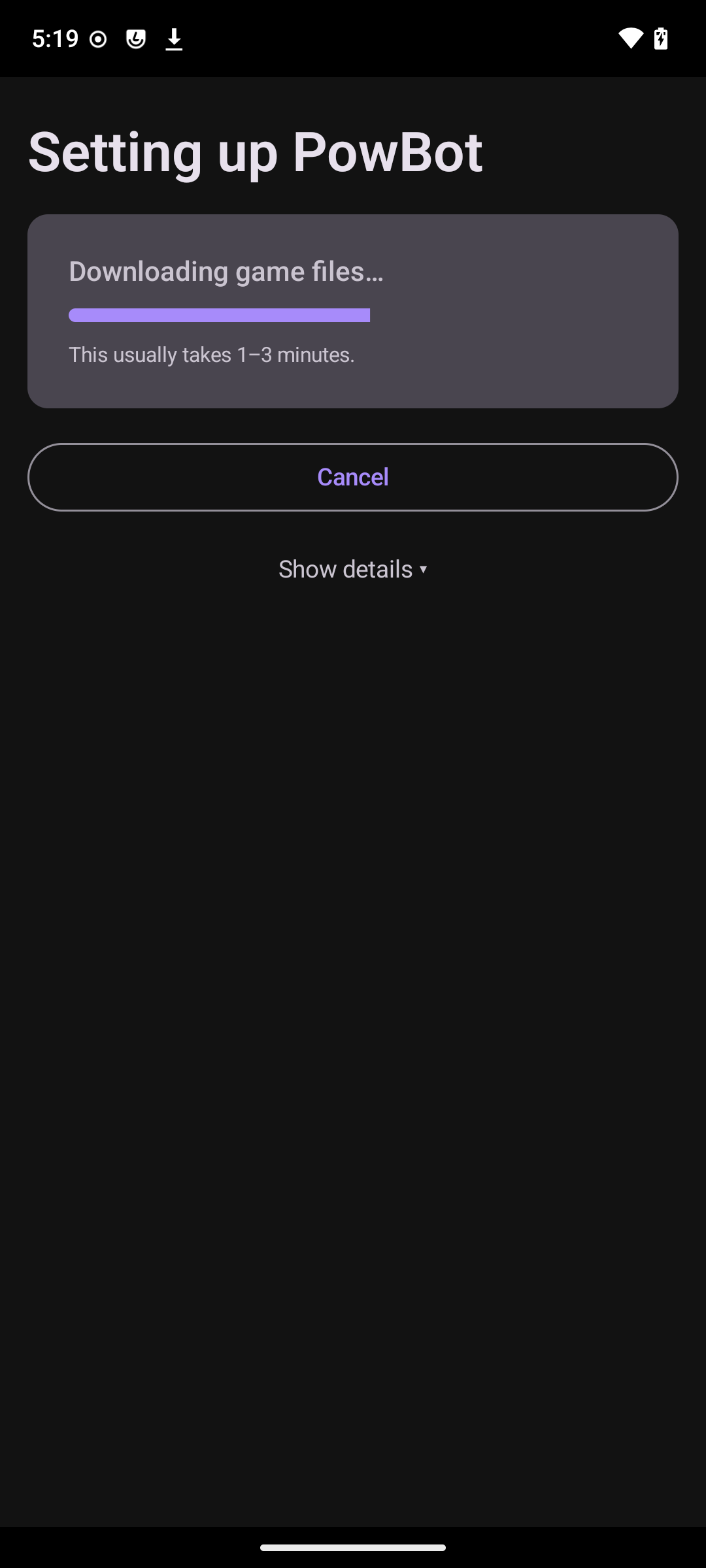 | 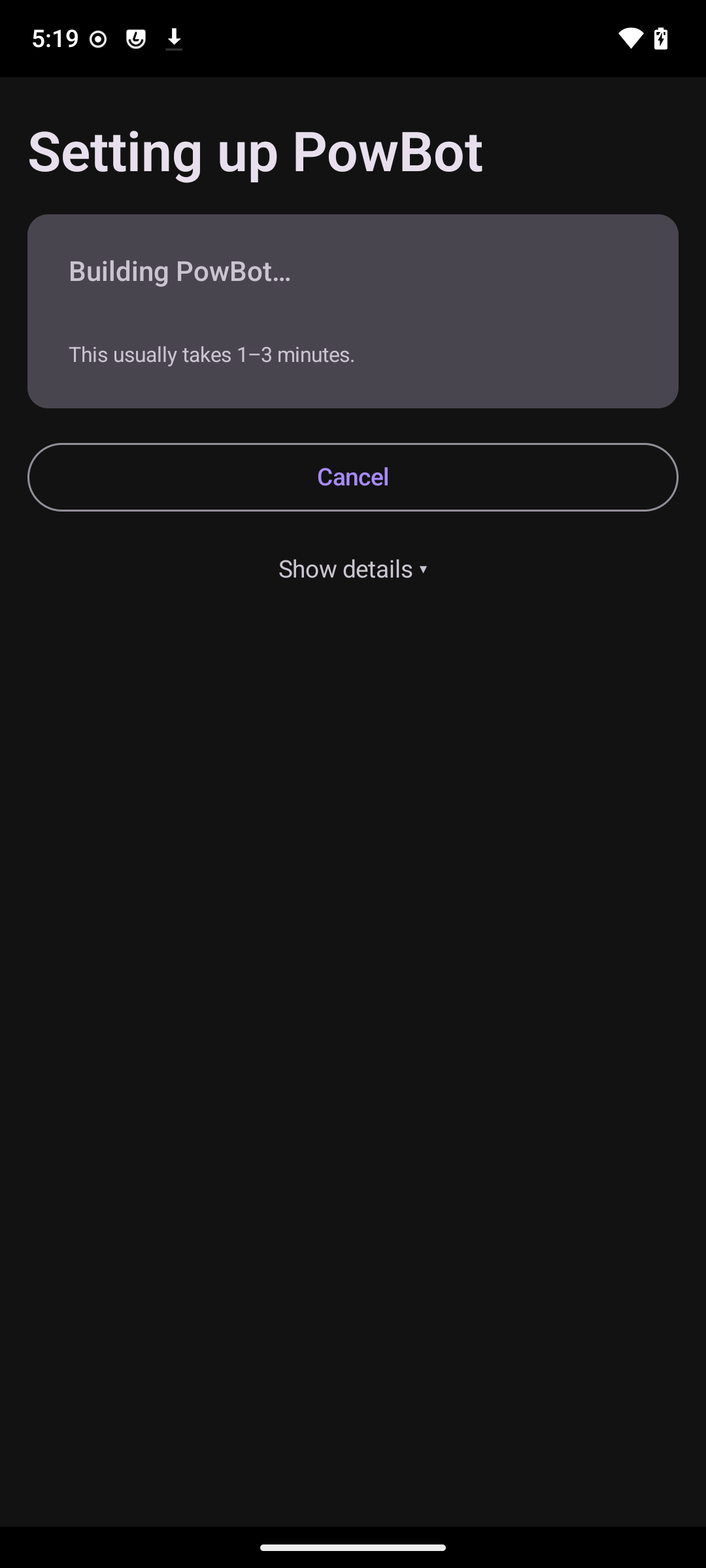 |
PowBot keeps you posted as it works. You can leave the screen open or switch away — a notification will keep you informed.
Curious about the detail? Tap Show details ▾ at the bottom of the screen to see the step list. Most users will never need this; it's there for support cases.
Step 7 — Confirm the install
When PowBot has finished, Android will pop up the usual "Do you want to install this app?" dialog showing the Old School RuneScape icon. Tap Install.
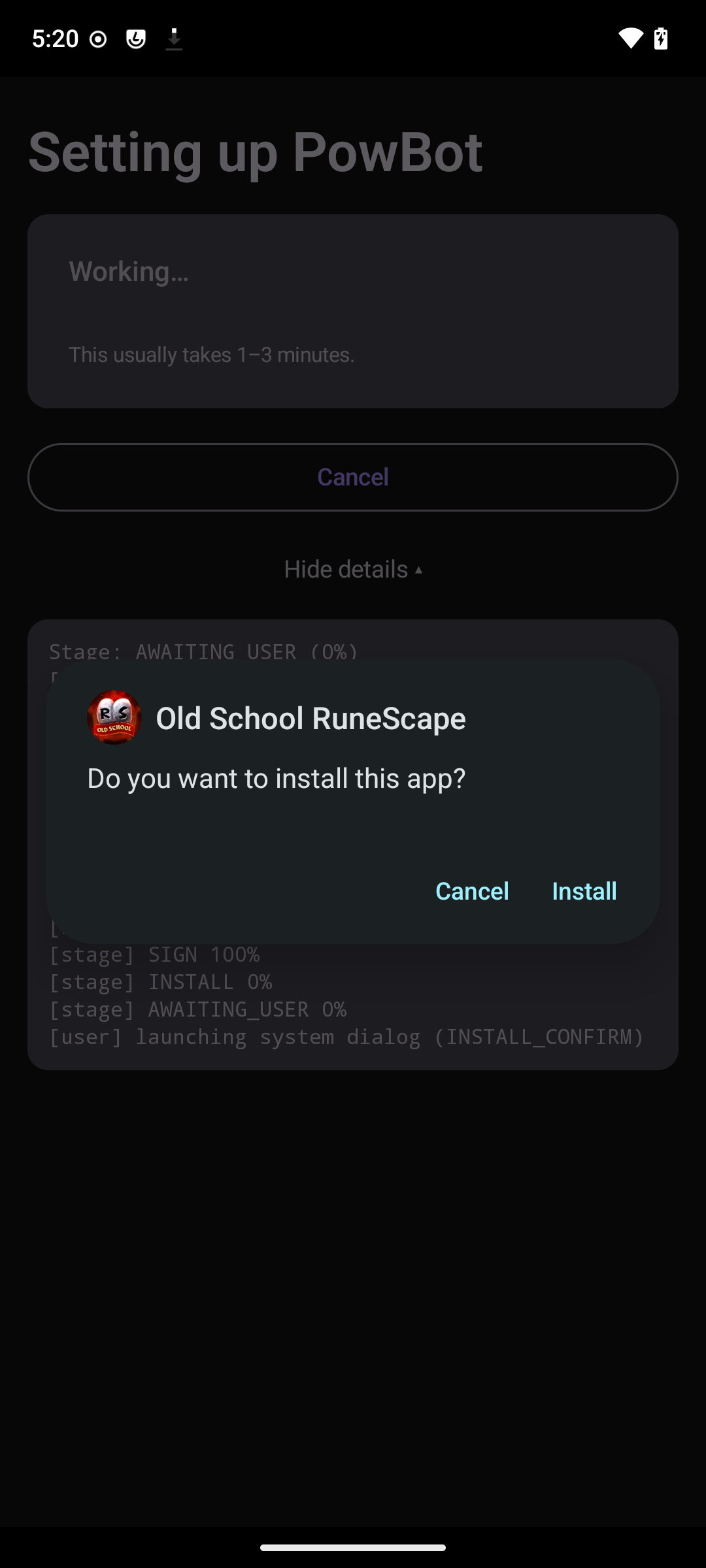
This is Android's normal install confirmation, not anything custom from PowBot. The icon is the same one you'd see installing OSRS from the Play Store.
Step 8 — Done
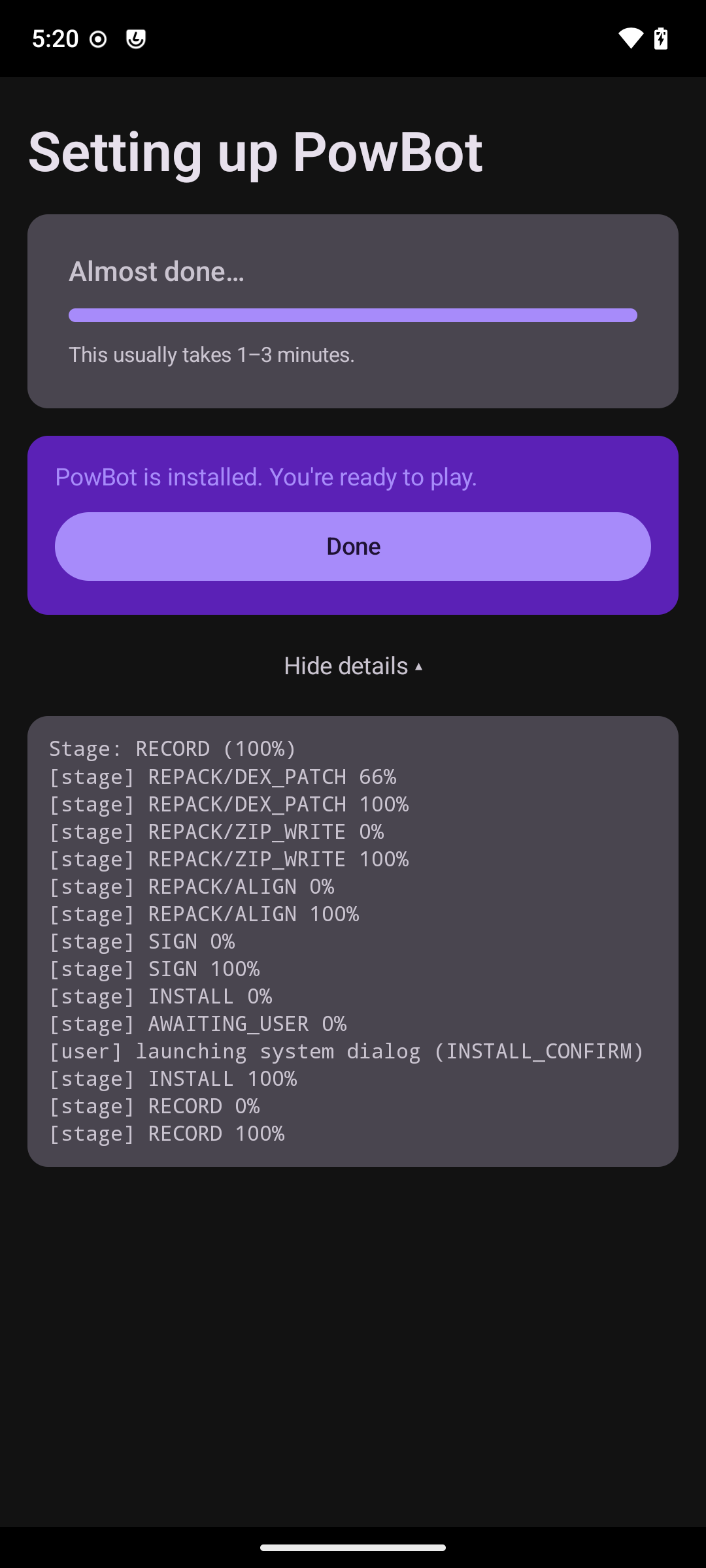
A few seconds later you'll see the success message. Tap Done.
Step 9 — Play
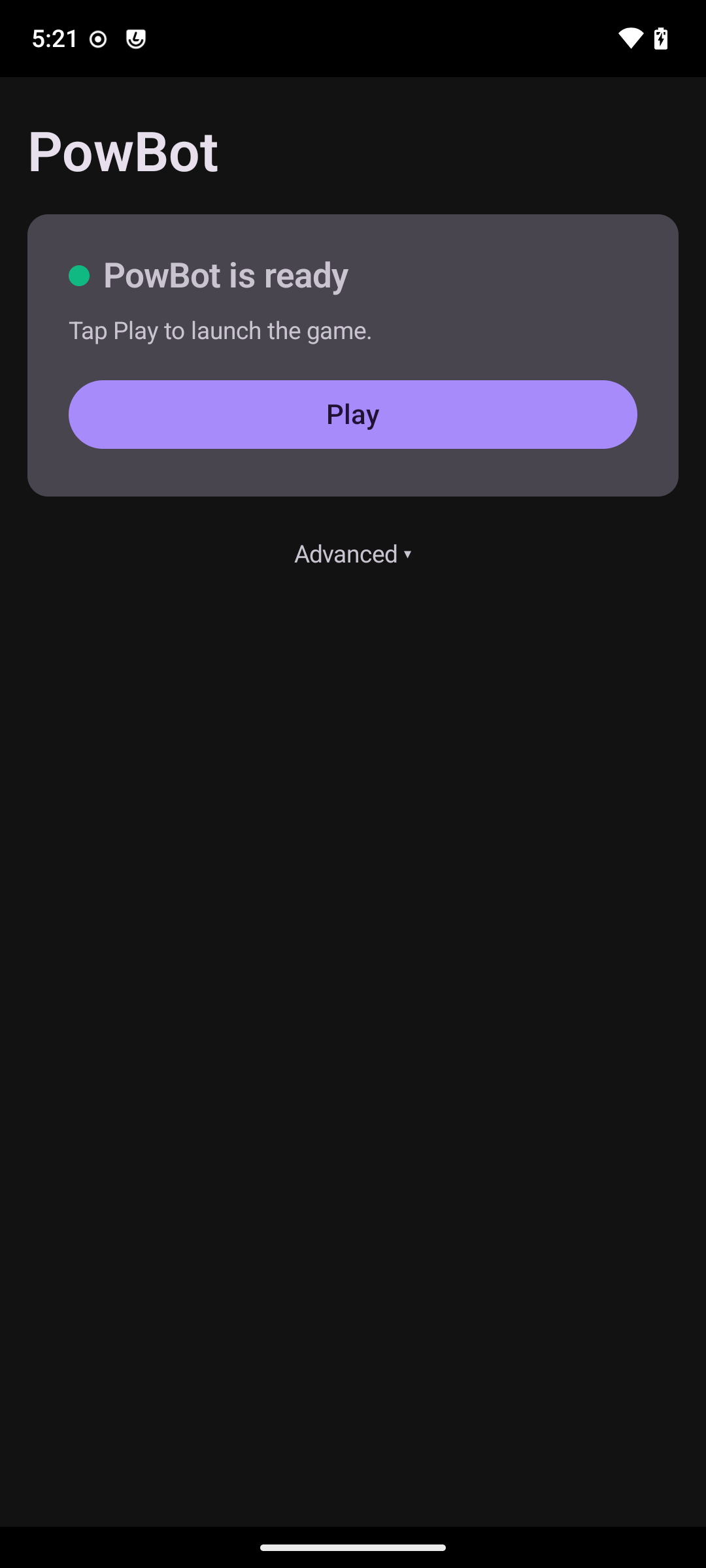
You'll land on the PowBot dashboard. The green dot means everything is ready. Tap Play to launch the game.
That's it — you're running PowBot on your phone.
Settings & extras
Almost everything else is hidden behind Advanced ▾ on the dashboard. Tap it to expand the panel.
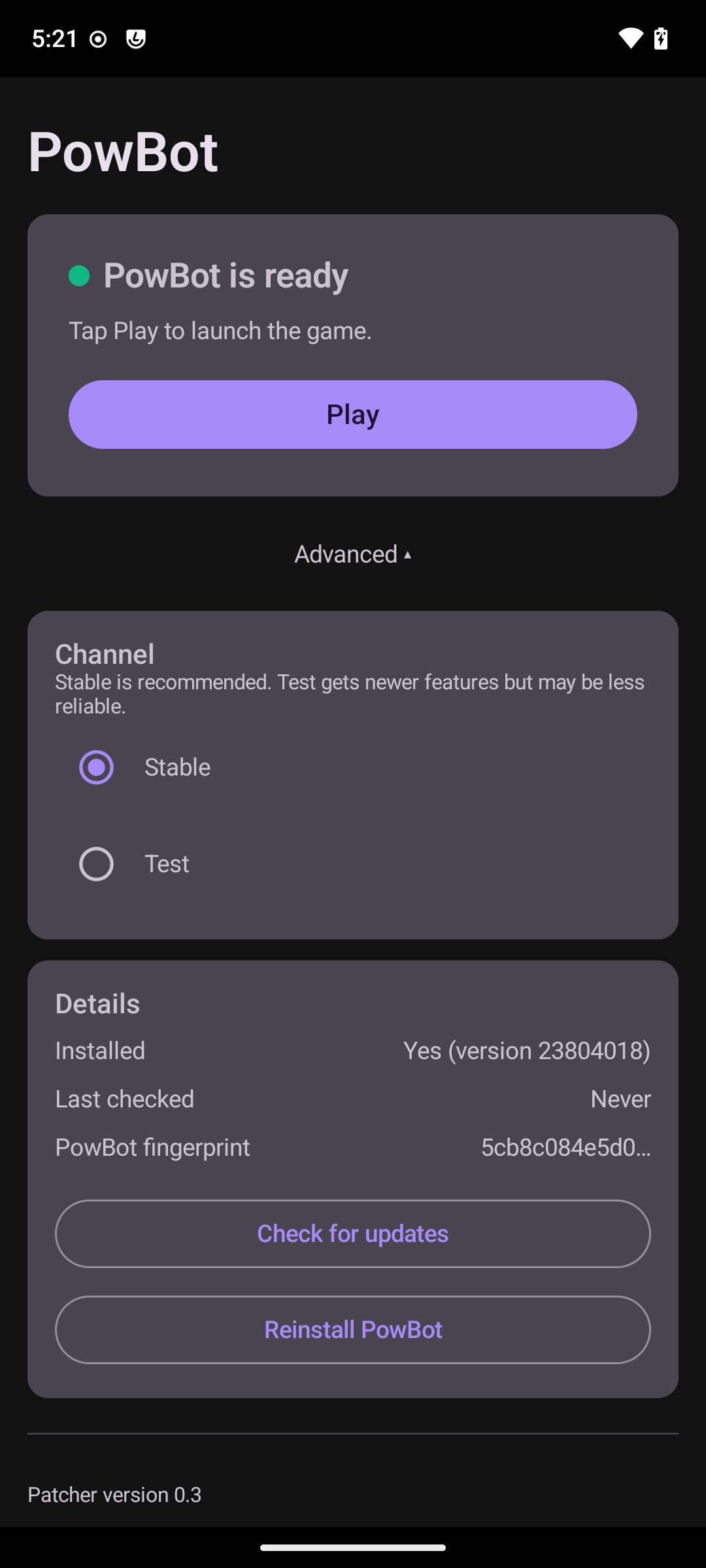
What lives in Advanced:
- Channel — choose between Stable (recommended) and Test (newer features, sometimes less reliable). If you change channels, tap Reinstall PowBot to apply.
- Check for updates — checks whether OSRS or PowBot have shipped a new version since you last set up. PowBot also checks in the background and will notify you when an update is ready.
- Reinstall PowBot — re-runs the whole setup. Use this if OSRS got an update, PowBot changed, or something feels off.
- Details — what version of OSRS you have installed, when you last checked for updates, and your device fingerprint.
Updating PowBot later
You don't need to repeat this guide each time something updates.
- OSRS updates — Open PowBot. If there's a new game version, the hero card switches to "Update ready" with an Update now button. Tap it and PowBot runs through Steps 6–8 again.
- PowBot updates — Same as above. The hero card knows when your install is out of date.
- App updates — When PowBot itself gets a new version, a small orange banner appears above the hero card with an Install update button. Tap it and PowBot downloads and installs the update for you (a one-time "Install unknown apps" prompt may reappear).
Troubleshooting
The install was blocked. Android needs your permission to install apps from outside the Play Store. Go to your phone's Settings → Apps → Special access → Install unknown apps, find your browser (or PowBot), and toggle it on. Then try the install again.
Setup failed at "Downloading game files…". Check your internet connection and try Reinstall PowBot from the Advanced section.
The game won't open or crashes. Open PowBot, expand Advanced, and tap Reinstall PowBot. This re-runs setup from scratch.
Something else is wrong. On the progress screen, tap Show details ▾ and screenshot the log strip — that's the information the PowBot support channel needs to diagnose the issue. Join us on Discord for help.
This guide uses screenshots from a recent build of the PowBot app on a Pixel 7a running Android 16. Older versions of the app may look slightly different.